Governed business context
Connect authorized records and retrieve the evidence for the task. Keep source permissions and lineage with the context. Your existing tools remain the systems of record.
SPINEWORKSPACE · YOUR TEAM AND AI, IN CONTEXT
Bring records and evidence from your tools into editable dashboards and Canvas. Your AI Twin prepares the next step; your team stays in control.
1. Permitted Sources
CRM & Accounts
Deals · Contacts · Stages
Service & Support
Tickets · SLA · Escalations
Contracts & Docs
MSA · Clauses · Renewals
Finance & Billing
Invoices · ARR · Terms
2. Unified Entity Context · Spine Fabric
Acme Renewal Contract
Linked to Clause 14.2 & Expansion License
SSO Verification Follow-Up
Support queue context linked to account owner
Scene 01Unify records around real business entities. Connect CRM accounts, support tickets, contracts and billing records into one permissioned context graph before anyone—or any AI—takes action.
Explore Customer JourneyWhat you get
Bring the information behind the work into a workspace your team can use.
Connect authorized records and retrieve the evidence for the task. Keep source permissions and lineage with the context. Your existing tools remain the systems of record.
Give Sales, Finance, Account Success and other teams their own views of shared business context, with access appropriate to each role.
Edit record drafts from operational dashboards with KPIs and actions. Compose Canvas documents, tables and graphs from reusable UI Library blocks.
Available views depend on connected sources, your role and authorized capabilities.
Run daily work in editable dashboards. Build documents, tables and context graphs in Canvas with reusable UI Library blocks. Both share the blue Workbench shell.
Review Customer Service & Support records, KPIs and items needing attention. Search, filter and inspect without leaving the Workbench.
What you see in this frame
Shows 2 tracked Spine context items (tkt-501, tkt-502), readiness state (92%), and direct Review Plan / View Evidence controls.
Interactive Storyboard Steps
Step through each operational action inside the dashboard:
Track operational items, readiness state and review plans in one unified table.
Revise local draft notes, owners and due dates right beside connected records.
Filter by keyword or approval status (Review, In Progress, Approved) in place.
Launch Inspect or Ask Twin directly from any entity row in the role shell.
Captured from the running application dashboard with existing QA fixtures and a reviewed local draft/status repair that is pending application integration. Edits remain in the scoped local outbox. Connected-source changes require the authorized workflow. This capture does not demonstrate a freeform dashboard layout editor.
Combine editable text, record tables, metric blocks and Twin assistance in Canvas.
Native application components composed locally with existing QA fixture records. Populated Canvas captures use the component’s record input; the routed page does not yet supply them. Canvas composition edits are local to the view; saved layouts are not demonstrated. Sync and host badges do not verify connections or completed actions.
Visual Storyboard · 6-Stage E2E Flow
Follow the renewal and SLA follow-up journey implemented in the application: enter, assemble context, prepare a proposal, review authority, check the outcome and resume the work.
One Auth resolves the person, organization and workspace membership. Both entry paths converge on the same authorized workspace.
What carries forward: Your identity, workspace and role.
Explore governed continuity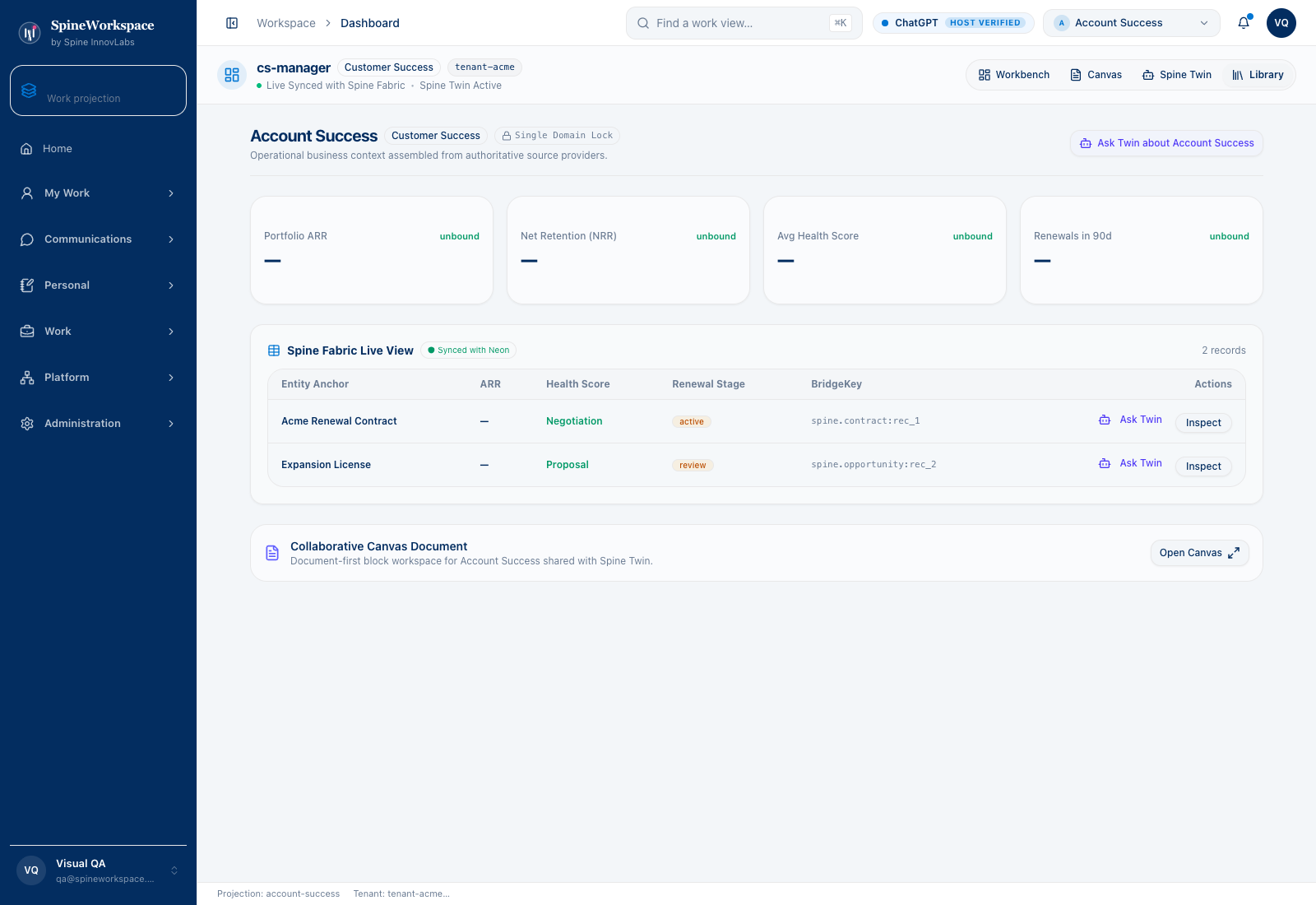 Detail preview · Enlarge for full view
Based on the October 15 repository journey report, which records 18 passing steps. The verification script combines deployed-service checks with a constructed email and controlled provider adapter. This walkthrough describes that recorded test scope; it does not establish live customer results or independent provider delivery.
Watch the shared navigation, operating view and work-view search respond in a recording of the actual Workbench application.
Recorded October 14 from the actual local Workbench using existing QA fixtures. The recording shows real interface interactions. Figures, workflow states and the host-status badge are fixture content; they do not establish live customer telemetry, verified host access or completed provider execution.
The FounderOps view sits inside the shared Workbench navigation. Sales & Pipeline collapses and expands to show fixture opportunities and contacts. Marketing & Campaigns opens its fixture rows. Operations opens workflow and task rows. Work-view search opens and is dismissed. No consequential action or external provider operation is performed.
Actual application captures with QA fixture data. Figures and host badges are not verified live customer telemetry, connection proof or evidence of completed actions.
Explore the adaptive architectureHow the workspace works
For a renewal review, relate the customer’s contract, invoice and service incident. Account Success, Finance and Engineering see the permitted evidence through their own views of the same Fabric.
STEP 01
Start with a customer, goal or task. Bring its related records and source evidence into the review.
STEP 02
Ask your AI Twin to summarize the situation, investigate the evidence and propose a useful next step.
STEP 03
People review the proposal. Consequential actions require authorization, and their outcomes must be checked.
Spine Network is designed to carry context and work checkpoints across compatible AI hosts. Each host independently verifies identity, tool access and authority before continuing.
Why choose SpineWorkspace?
Your tools hold the records. SpineWorkspace brings the context, working views and decisions together.
| What you already use | What SpineWorkspace adds |
|---|---|
| CRM, finance and support tools | Related business context across authorized records. |
| Reporting dashboards | Editable operational views beside related records and source evidence. |
| AI chat | Shared business context, work history and proposed next steps for human review. |
| Workflow automation | Context and review before authorized actions, with observed outcomes afterward. |
Why pay for a workspace?
Start with one renewal, handoff or operating review. Compare preparation effort and handoff clarity with your current process.
SpineWorkspace Platform · Commercial Access
Usage-GovernedStarting with permanent free host-discovery
Scale based on connected systems of record and sync streams
Interactive pricing calculator, connector allowances, and self-service signup are hosted directly on the product site.